A passage raises a question, and your first instinct is to look for another voice beside the text. I recommend Bible Note first for recording that question, exploring Scripture references, and keeping the follow-up in one place. If your next step is to read a particular study Bible or compare named commentaries, Olive Tree Bible App gives you a more substantial resource library. It is a good choice for readers willing to select, buy, and download the titles they will actually use.
The central buying decision is simpler than its store may first appear: the reader and several major Bible translations are free; individual study resources can be purchased; subscriptions offer temporary access to selected libraries. Olive Tree is strongest when you know which book or commentary you want alongside the passage. A reader looking mainly for a quick passage explanation or organized sermon follow-up may be better served by Bible Note.
This is Bible Note's editorial assessment of Olive Tree's current US store listings, help articles, and privacy information, checked in October 2026. We recommend our own app first for the study-and-notes task above.
What makes Olive Tree useful for a serious study session?
Imagine preparing a small-group discussion on a difficult paragraph. Read the paragraph and write down the question before reaching for an explanation. In Olive Tree, open the passage, then open the Study Center. Its Resource Guide gathers relevant material from the books in your library next to the text. Parallel lets you bring another available Bible or resource into view. Compare how available translations render the same passage before consulting a study note. This arrangement can save the repeated search from verse to book to note—provided that the commentary or study Bible you want is actually in your library.
That last condition is the heart of the review. Resource Guide draws from the titles in your library. Open one passage, inspect which named works appear, and ask whether one of them answers your real question. If you teach across traditions or need a disputed passage explained, read the writer and edition before treating a short note as the settled answer. A dictionary entry may define a word; a commentary should show how an interpreter reads the surrounding argument.
Olive Tree also supports search, bookmarks, highlights, and notes. Attach a short observation to the passage after consulting a source: “Here is what the paragraph says; here is what this commentator argues; here is what I still need to check.” The note is more useful than a copied conclusion because it keeps your own question visible when you return a week later.
On a phone, Study Center and Library menus add steps beyond simply scrolling through Scripture. On a tablet or desktop, the room to view text and supporting material may better suit longer preparation. Olive Tree has separate getting-started guides for iPhone/iPad, Android, Mac, and Windows; expect some menu placement to differ. The useful test is to carry one study question through the passage, one named resource, and one saved note before buying a large collection.
What is free, and what would you actually pay for?
Start free. The app itself costs nothing to install, and the current US Apple listing names ESV, NIV, KJV, NKJV, and CSB among five free major translations. The Android listing also names NIV, ESV, KJV, and NKJV. Catalog access can vary by device, region, and title, so check the exact edition inside the store on the device you use.
From there, Olive Tree offers three distinct access paths:
Free library: read an included Bible, use the reader, and inspect free resources before spending. This is enough to decide whether passage navigation and notes fit your study rhythm.
Individual purchase: buy a specific study Bible, commentary, dictionary, map set, or translation if you expect to revisit that title. The title and edition determine what appears in Resource Guide and what you can download. Previous individual purchases remain available without an active subscription.
Optional subscription: borrow access to a defined collection while the plan is active. Starter and Study Packs bundle introductory study resources; Commentary Select lets you select eligible commentary volumes and change selections on its monthly schedule; Classic Commentary focuses on historic works. This route suits a reader sampling a range of titles before deciding what to keep.
A price snapshot helps make that concrete. In the US Apple listing checked in October 2026, Starter Pack Monthly was $2.99, an ESV/NIV/NKJV Study Pack Monthly was $5.99, NIV Bible was listed at $0.00, and ESV Study Bible at $47.99. The same listing showed individual paid editions such as The Message and NASB1995. Olive Tree's subscription FAQ gives Study/Starter Packs at $2.99–$5.99 per month, Commentary Select at $8.99–$19.99 per month, and Classic Commentary at $7.99 per month. The US Google Play listing advertised a $5.99 monthly Study Pack, with six-month and annual options and a 14-day trial. These are channel-specific snapshots; inspect the checkout terms, renewal date, and included titles before paying.
My buying rule is to delay the first purchase until one title keeps coming up in actual study. If a single study Bible supplies the notes you need every week, an individual purchase has a clear job. If you are exploring commentary voices or need several kinds of reference books for a season, a suitable subscription can be a lower-commitment starting point. Check the plan's exact inventory for the author, volume, and biblical book you need.
Website or in-app purchase?
Olive Tree says website purchases attach to your account and can be downloaded in its apps. In-app Apple and Google purchases are processed by their stores and may need registration to appear in your Olive Tree account. The same title may have a different price between OliveTree.com and the in-app store because of sales, store price tiers, currency conversion, or platform fees. Coupon codes and upgrade pricing apply on the website.
The return route also changes with the channel. Olive Tree advertises a 30-day website return period; Apple handles Apple refunds, while Olive Tree support says it can process Google Play refunds. Check the current terms for your transaction before buying an expensive commentary set. Compare website and app checkout for the same edition and inspect the plan inventory behind a monthly price.
Can your library travel and work offline?
Olive Tree supports downloaded Bible texts and books offline, which is valuable for a commute, retreat, or unreliable church Wi-Fi. Its iOS and Android help guides give the same basic path:
Sign in to the Olive Tree account holding your library.
Open Library → Cloud. A dimmed cover with a download arrow is still in the cloud; tap it to download.
Wait for the cover to become solid, then open that Bible or book from Library.
Open the exact commentary volume or study Bible you need before leaving a connection. Commentary sets may offer individual volumes or a full-set download; study Bibles download as a bundle.
Put the device in airplane mode and open the passage and resources you intend to use. That local check is especially useful after adding new titles.
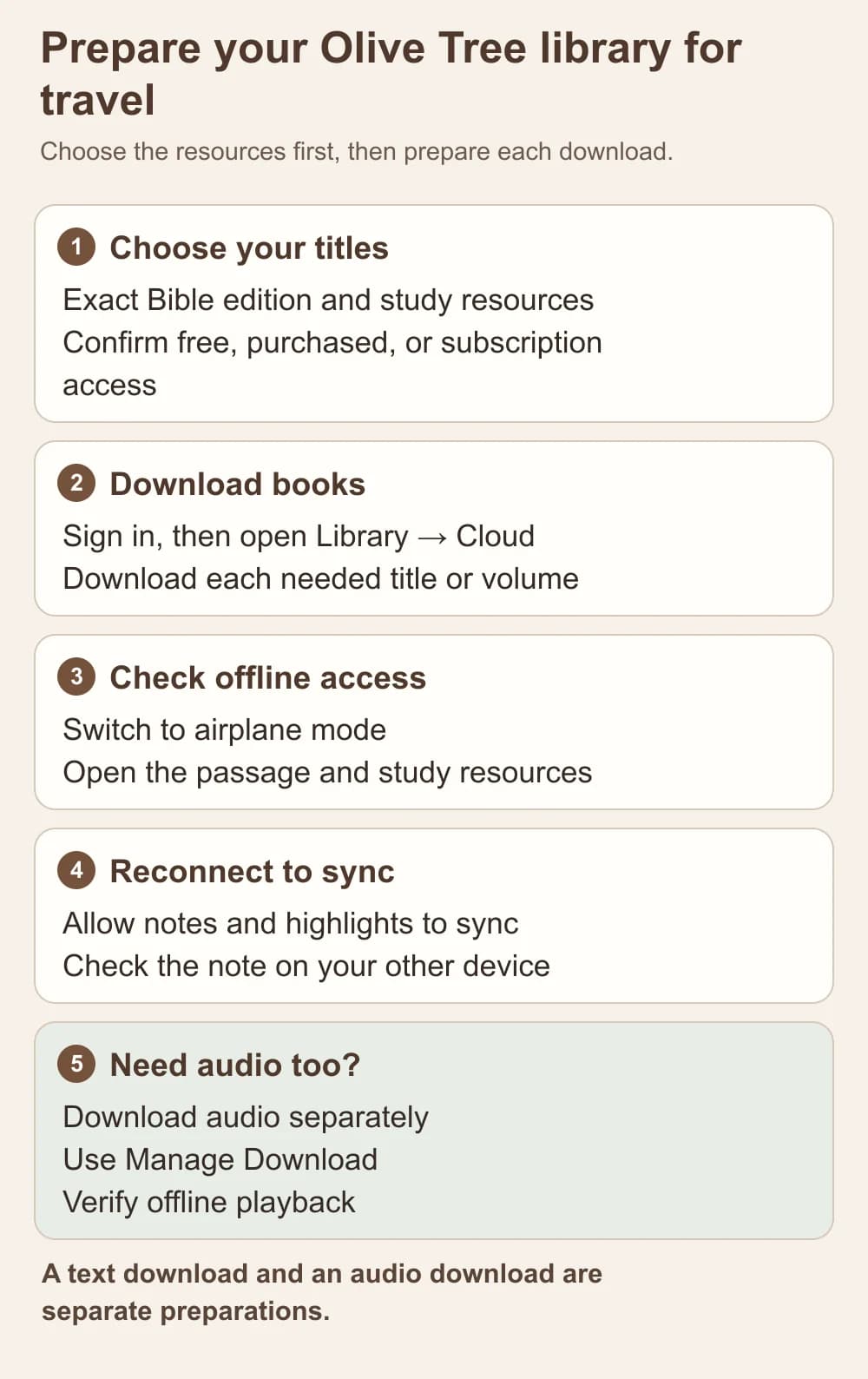
An editorial offline-preparation guide. Download the exact texts, study books, and audio you need, then check them before traveling.
Audio is a separate download. Olive Tree streams audio by default, and its automatic book-download setting excludes audio Bibles and audiobooks. Open the audio title and use Manage Download to save the whole audiobook or selected audio-Bible sections for offline listening. Save the audio sections for your next listening session separately from the text Bible.
The account also matters across devices. Olive Tree's getting-started guides say signing in gives library access and syncs personal notes and highlights. Its purchase license permits the same-account resources on up to five active devices that you own or operate. A phone, tablet, home computer, and work computer can fit within that limit; a shared class fleet needs a different licensing conversation. Allow a connected sync after editing notes, then check the destination device for the particular note you need. The official Android privacy-controls guide says account information, purchase and download history, and annotations are stored on Olive Tree servers to enable this access.
Where does Olive Tree feel strong, and where does it ask more of you?
The strongest reason to choose Olive Tree is the connection between a passage and a chosen library. A reader can assemble a small, purposeful shelf of translations, study Bible notes, maps, dictionaries, and attributed commentary, then call relevant entries up while reading. That is more useful than collecting titles without a question. Its four documented platform families and downloadable books support the reader who studies at a desk and carries the same purchased works on a phone.
The cost is both money and curation. Free Bible text makes a fair start, but a premium commentary, study Bible, or audio title can introduce a separate entitlement and download. The Resource Guide is most compelling after you have selected good resources. Check an author's perspective, title, edition, and coverage before paying; a historical commentary can illuminate the reception of a text while reflecting its own period and tradition. Select a source for the question you actually have, then return to the biblical paragraph to assess its reasoning.
Subscriptions deserve a calendar reminder. When subscription access ends, Olive Tree says the resources included only through that plan become unavailable. Previously bought titles remain usable. If you annotated a subscription-only title, the annotations remain available through the account menu while logged in, although you may lose the in-text location in a title you can no longer open. Save your own short research note outside that title when a future teaching plan depends on it. Commentary Select also locks a month's chosen volumes until the next selection period, so choose by the biblical books you will work through next.
Privacy is part of the account decision. Olive Tree's policy describes account and contact information, app usage and analytics, service providers, and marketing uses; Apple's developer declaration lists linked purchases, contact data, user content, identifiers, usage, and diagnostics. On Android, Settings → Advanced Settings → Privacy offers controls for analytics, app performance, and personalization or messages, while core download, annotation, and account services remain necessary. If a study note contains a private prayer request or someone else's story, write only what you have permission to store and share.
When should you choose Bible Note instead?
I would use Bible Note's Bible Study Chat when the first need is a question about a passage and an explanation with Scripture references to inspect. Enter or scan a reference where supported, record what is unclear, and read the surrounding text as you consider the answer. Bible Note also helps keep a passage question with study and sermon notes. If a Sunday teaching becomes the starting point, its sermon transcription and review workflow can organize an authorized recording or import, key ideas, cited Scripture, and follow-up questions. These are concrete ways to preserve your study trail during the week.
Olive Tree is the stronger route when the question calls for a particular published resource—perhaps a named commentator on a difficult paragraph, a specific study Bible edition, or a portable collection you have already purchased. Bible Note's generated explanation is a prompt for checking Scripture and named sources. Choose Olive Tree for a licensed commentary, a particular paid edition, or a downloaded library that you can carry offline.
For a wider choice, compare the named voices and library approaches in Bible apps with commentary, device preparation in offline Bible apps, or how to keep your own observations in Bible journaling apps. Those guides answer category questions; this review is the decision about Olive Tree's library and purchase model.
Is Olive Tree free if you want NIV or ESV?
The current US Apple listing includes both NIV and ESV among its free major translations, and the Android listing names them too. Start with those included editions and check the title displayed in your own store. A specific study edition or additional resource can still have its own price. For example, the free NIV listing and a paid study Bible are different products.
Will a subscription replace a commentary you bought?
An individually purchased title stays in your Olive Tree library without an active subscription, according to Olive Tree's subscription FAQ. A title supplied only through a plan is available while that subscription grants access. If you repeatedly consult one volume, compare its one-time price with the recurring plan and check which other books the plan genuinely adds to your study.
Can you listen offline after downloading a Bible?
Download the audio separately. Text-book downloads and automatic book downloads do not save audio by default. Open the audio Bible or audiobook, choose Manage Download, select the entire audiobook or the sections you need, and verify playback before traveling.
Summary
Olive Tree Bible App is a strong choice for readers who want to build a named, passage-linked study library across supported devices. The free app and current free modern translations make the initial decision easy; the substantial choice comes when you add a particular edition, commentary, or optional subscription. Test one passage and one resource first, compare website and in-app terms for the same title, and download text and audio separately for offline use.
For a passage question and notes you can revisit, start with Bible Note. When that question needs a published voice, bring the exact Olive Tree resource you own or subscribe to alongside Scripture, and keep your own observation and the author's interpretation distinct.
Editorial status
Written and edited by Hans Keller for Bible Note. Sources, Scripture context, dates, and practical limitations are checked before publication.

About the author
Hans Keller
Editorial & Content Lead
Bible Study & Sermon Learning Content Editor
Hans helps Christians turn sermons and Scripture study into clear notes, thoughtful questions, and faithful next steps.
His work helps listeners and group leaders carry a sermon or study beyond the meeting: back to the passage, into clearer questions, and toward one practical response for the week.
Read with Scripture open
Use this guide alongside the full biblical passage and the practices of your local church. Interpretive details can differ across Christian traditions.
See more Bible Note on Google
Add Bible Note as a preferred source to help find our Bible study guides more easily in Google Search.